 |
JobTabs Job Search & Resume Builder 2013 | Submit feedback on this topic |
Glossary Item Box
|
JobTabs Job Search & Resume Builder 2013 | Submit feedback on this topic |
JobTabs is configured to work with a considerable number of email packages. These include,
* At the bottom of this article are links to specific topics that describe in detail on how to configure JobTabs for popular email providers such as GMail, and Yahoo. Others will be provided upon request.
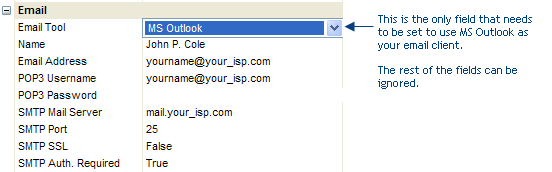
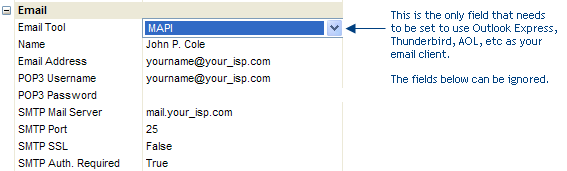
If you use MS Outlook or a MAPI compliant program to send and receive your email, then you do not have to configure any other fields. Simply click on the drop down box for Email Tool, select either MS Outlook or MAPI and you're done. For MS Outlook,
For MAPI,
 |
MAPI is a programming standard that allows computer programmers to create email applications which can send and receive email using commonly accepted standards for communicating via email. All of the email applications above are MAPI compliant with the exception of SMTP. MS Outlook is separated in this case because it processes email using a different technology than MAPI even though it is MAPI compliant. |
SMTP stands for Simple Mail Transport Protocol. POP3 stands for Post Office Protocol version 3. SMTP is the technology used to send email to your ISP while POP3 is the technology used to read email from your ISP. They are sister technologies, but are generally referred to collectively as POP3. So if someone asks you if you have a POP3 account they are generally asking if you have a SMTP/POP3 account.
POP3 is a method for sending and receiving your email to your ISP without any third party software. POP3 parameters are provided to you by your ISP and are typically delivered with your welcome packet when you sign up for service. If you don't have this information, simply contact your ISP and they will provide you with all of the parameters you need to send and receive email via POP3. There are many more fields for configuring SMTP/POP3 because JobTabs needs to know what your ISP requires in order to send/receive email. These fields don't need to be populated when using the MS Outlook or MAPI options mentioned above, because you already entered these parameters when you configured those email applications. In fact, if you have MS Outlook or another MAPI compliant application working properly on your machine you can use the values you used to configure those applications to configure SMTP/POP3.
Your name is the name that will appear in the FROM field of your recipient's inbox instead of your email address.
For example, if your name is John Doe the recipients of your email will see,
FROM: John Doe
instead of,
FROM: jdoe@yourisp.com
This is optional and if left blank will show your email address instead of your name.
If you plan on sending email from JobTabs, you will need to provide an email address. This is the email address that your Employers, Recruiters and Networking contacts will use to reply to your emails.
All items below apply to configuring your SMTP/POP3 account. If you are not going to be using POP3 to as your email option then you can skip these parameters.
This is the user name you use to login to your email user account. Without your user name and password, JobTabs may not be able to login to your server to send your email.
This is the password you use to login to your email user account. Without your user name and password, JobTabs may not be able to login to your server to send your email.
This is the server to which you will send your email and resume attachments from JobTabs. A common format is simply,
mail.your-isp.com
This is also called an SMTP Server. If you have email software already configured to send mail, then you can use the same settings from that software in JobTabs. Consider using the settings from Outlook Express if you use that for example.
Typically, you would leave this value at 25 which is the industry standard. However, if your computer is configured to use a non standard port you have the option to use that port in JobTabs.
If your Internet Service Provider, ISP, requires SMTP Authentication then you need to set this value to True to send email from JobTabs. Your ISP should have this clearly posted in your connection instructions. If not a quick call to tech support should address the issue.
| See Also |
Email: Sending Email
© 2005 - 2012 by JobTabs, LLC. All rights reserved.